Overview
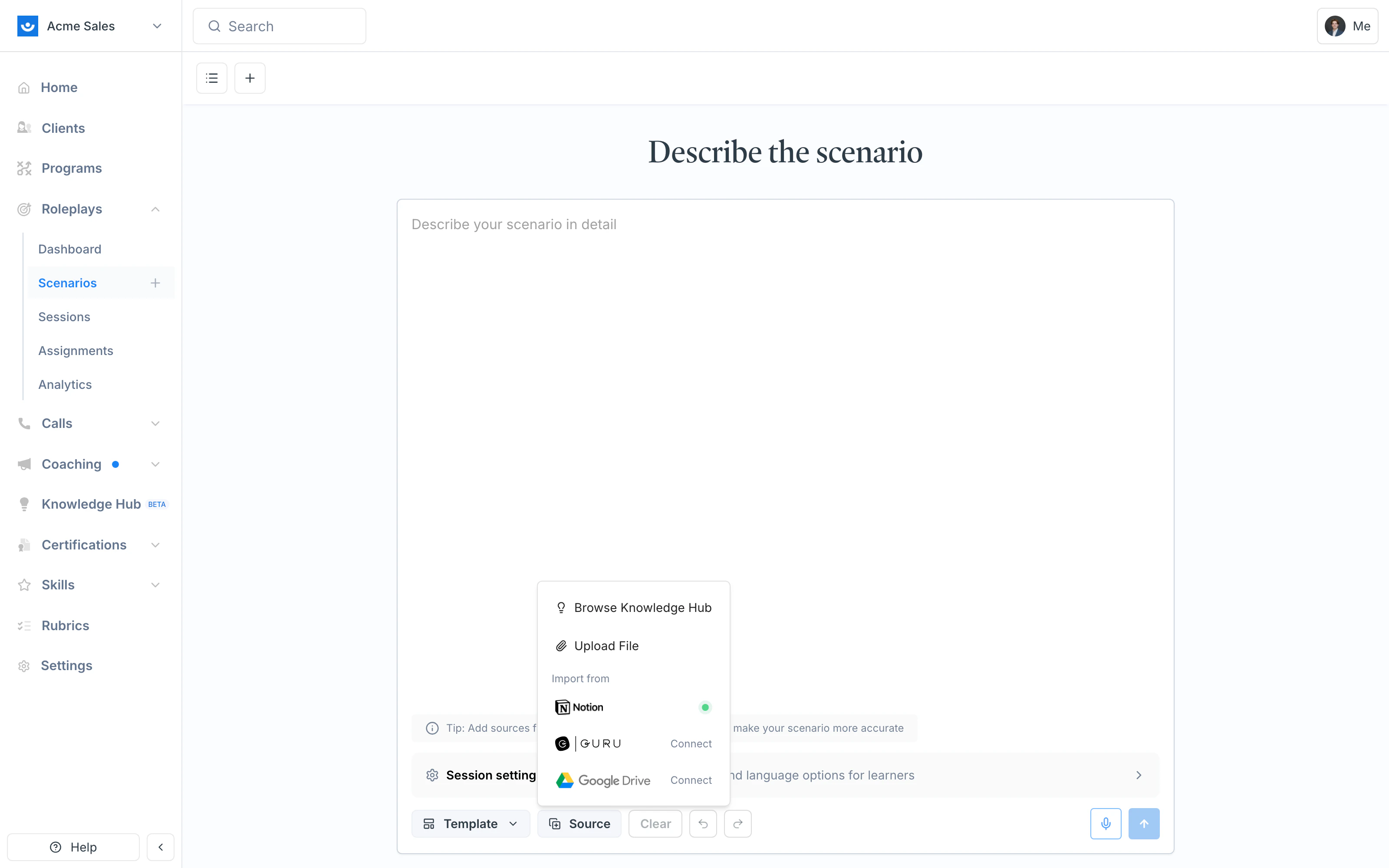
When building a scenario in Scenario Studio, you don’t have to describe everything from scratch. The Source menu lets you bring in existing material — product guides, call transcripts, certification docs, company briefs — so the AI Agent can reference them while building your roleplay.
There are three ways to add a source, all in one place:
| Source | Use it for |
|---|
| Browse Knowledge Hub | Reusable reference material saved to your workspace (company brief, methodology guide, pricing) |
| Upload File | A one-off document for this specific build (a single PDF, a call transcript) |
| Import from Notion / Guru / Google Drive | A page or doc pulled directly from your team’s connected tools |
Adding a Source
Open the Scenario Studio
From your dashboard, click + Create to open Scenario Studio.
Click Source
Below the main text input, click Source. A menu opens with all three options. Pick where the source comes from
- Browse Knowledge Hub — opens a picker of saved Knowledge Hub pages
- Upload File — file picker for PDFs, Word docs, etc.
- Import from Notion, Guru, or Google Drive — connect the integration if you haven’t already, then pick a page or doc
Describe what you want
In the text field, tell the AI Agent how to use the source. For example:
Using the attached call transcript, please create a discovery call roleplay for a sales rep.
Submit
Click Submit. The AI Agent reads the source and builds a scenario based on its contents. It may ask a few clarifying questions before generating the draft.
Picking Between Sources
Use the Knowledge Hub when you’ll reference the same material across multiple builds. Pricing decks, company briefs, methodology guides, persona research — anything you might want to pull into a discovery scenario, an objection-handling scenario, and a renewal scenario should live in the Knowledge Hub so it’s one click away every time.
Upload a file when it’s a one-off — a single call transcript you want to draw a scenario from, or a PDF that doesn’t make sense to save permanently.
Import from a connected tool when the source of truth already lives somewhere else. Pulling a Notion page or a Google Doc keeps the scenario in sync with the original source, rather than going stale the moment your team updates the doc.
Save your most-used reference materials to the Knowledge Hub so they’re available on every future build without re-uploading. Not everything from a source automatically gets pulled into the final scenario. If specific information is missing, explicitly tell the agent to include it.
Getting Help
Need help? Contact us at hello@exec.com for guidance on using sources or any questions about Scenario Studio.